


Help Center
-
Free-standing Kitchens
-
Design Your Kitchen
-
Online Kitchen Planner
-
- What is the Canvas?
- What do each of the buttons do?
- What can you use custom units for?
- Can I see diagrams of the units?
- When do you use extras on your plan?
- How do you start a new plan?
- How do you continue with an existing plan?
- What do you use the ruler for?
- Can I move multiple units at once on the canvas?
- How do I download the layout so that I can print it?
- How to I submit my layout to get a quote?
-
Construction
-
Costs
-
Ordering
-
Delivery
-
Kitchen Installation & Maintenance
-
Environment & Community Impact
< All Topics
Can I move multiple units at once on the canvas?
Certainly. If you’re using a desktop, you can click and hold your mouse button on the canvas, and then drag it over the units you want to move. After selecting the units, you can drag them to the desired position on the canvas. On mobile devices, you can press and drag your finger across the units to select them, and then move all the selected units together. For instance, if you notice that some units are outside the canvas in the white area, you can select all of them and move the entire layout to bring everything onto the canvas.
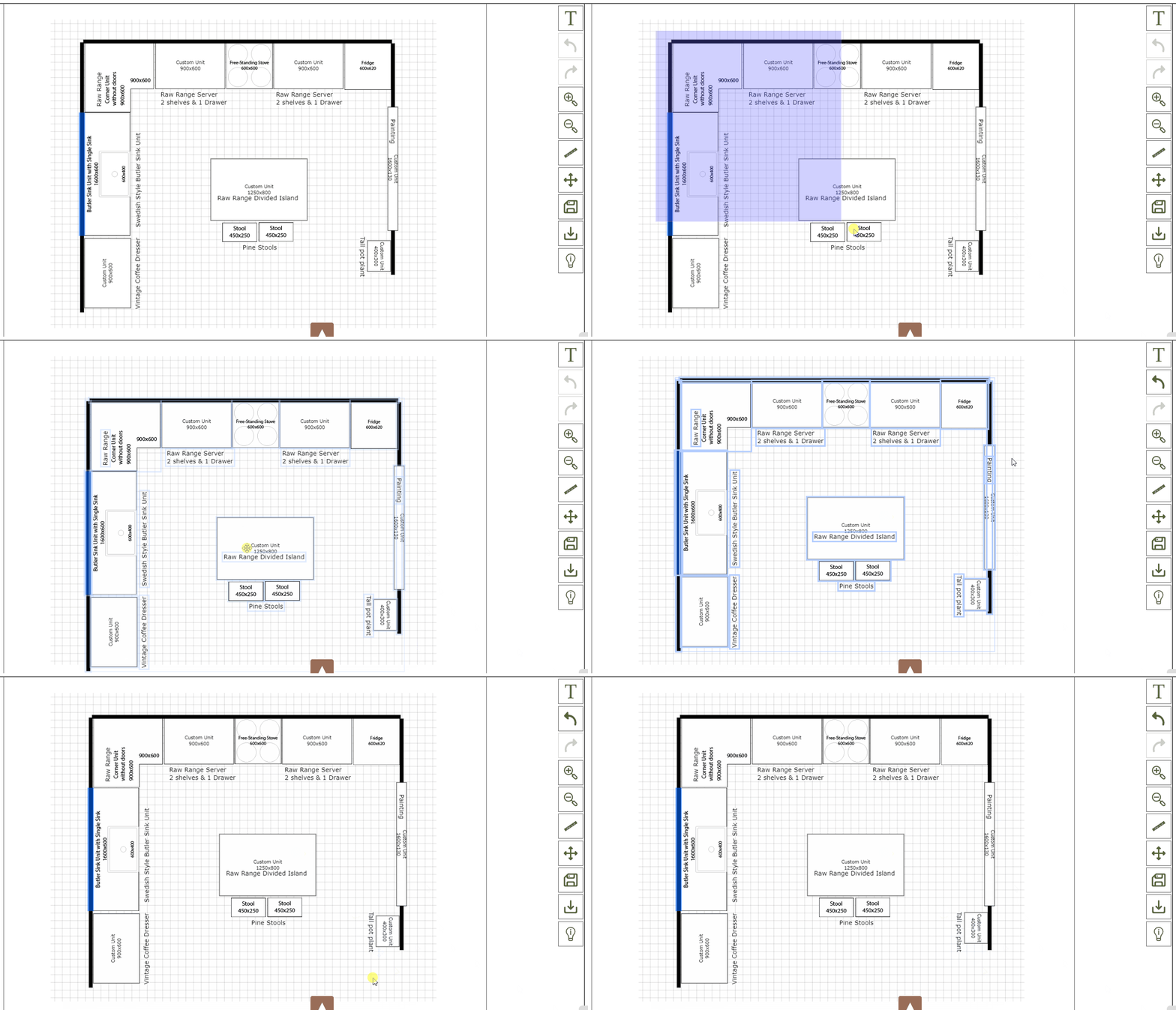
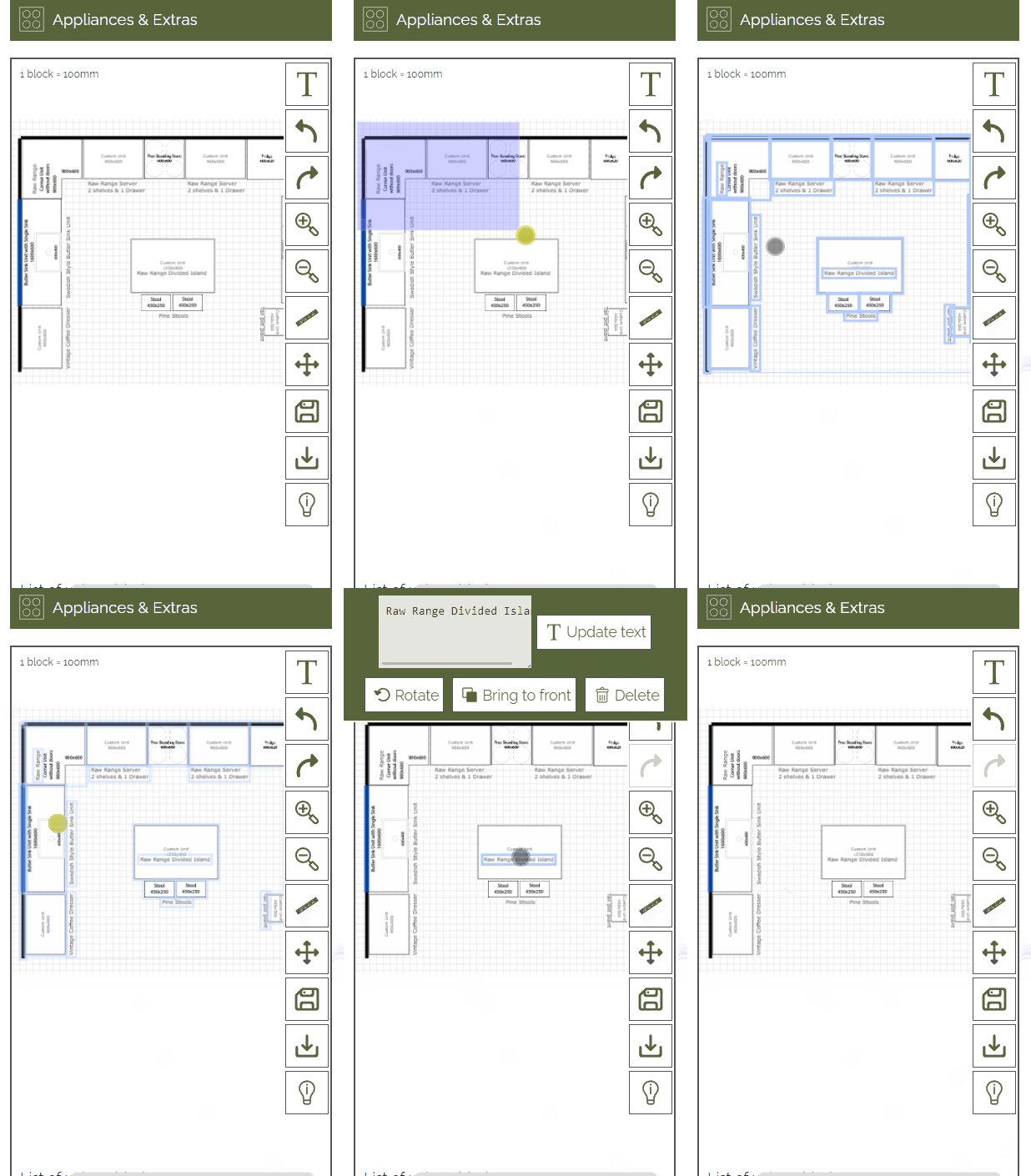
Select Multiple Objects
Quick Links