


Help Center
-
Free-standing Kitchens
-
Design Your Kitchen
-
Online Kitchen Planner
-
- What is the Canvas?
- What do each of the buttons do?
- What can you use custom units for?
- Can I see diagrams of the units?
- When do you use extras on your plan?
- How do you start a new plan?
- How do you continue with an existing plan?
- What do you use the ruler for?
- Can I move multiple units at once on the canvas?
- How do I download the layout so that I can print it?
- How to I submit my layout to get a quote?
-
Construction
-
Costs
-
Ordering
-
Delivery
-
Kitchen Installation & Maintenance
-
Environment & Community Impact
< All Topics
Tutorial Step 3
Step 1
Measure your kitchen using our guidelines.
Step 2
Answer some basic design questions.
Step 3
Draw your floor plan using our online planner.
Step 4
Design your kitchen using MK units.
Step 5
Submit your design to us for a quotation.
Draw your floor plan using our online planner
Before proceeding to step 3, we recommend reading the first two questions on our Common Questions page. This will help you understand what the canvas is and what each button does so that you can easily navigate through the kitchen planner.
- Draw your floor plan by clicking on “Draw Floor Plan”.

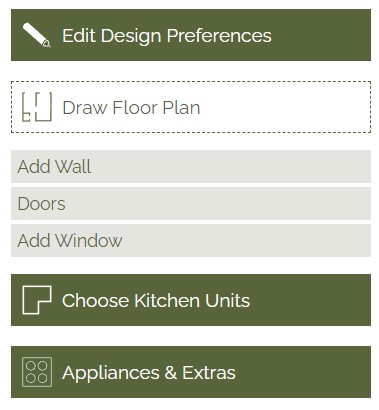
Draw Floor Plan
- To add walls in the kitchen, click on “Add wall” and enter the dimension for one wall and then click on “Update width”. Position each of the walls on the canvas. Keep in mind that your wall measurements are taken from the inside, so the inside corners of the black line should touch and not sit on top of each other to keep the dimensions accurate.

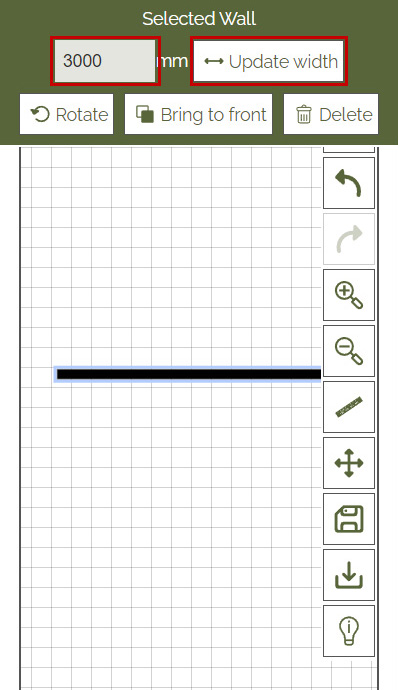
Change Dimension and Update Width

Incorrect Wall Placement

Correct Wall Placement
- To add doors, select “Doors” and choose either the left or right-side door option for standard 800mm wide doors. Keep in mind the direction of the door opening while planning your design and rotate the doors as needed to ensure they are in the correct position. If you have a custom-sized single or sliding door, click on the respective button, and input the width in the green bar. After modifying the width don’t forget to click on “Update Width” and rotate the door to indicate the opening direction.
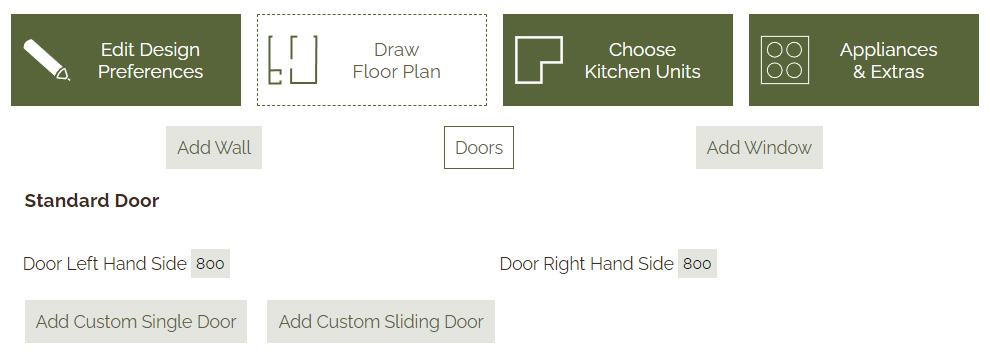

Doors Section


Rotate Doors to Correct Position
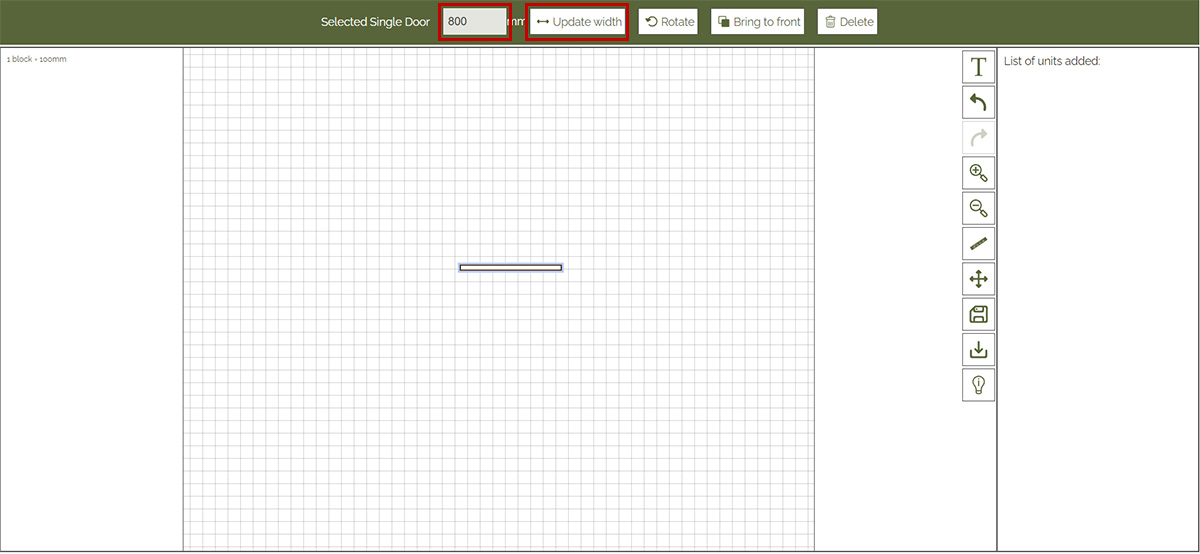
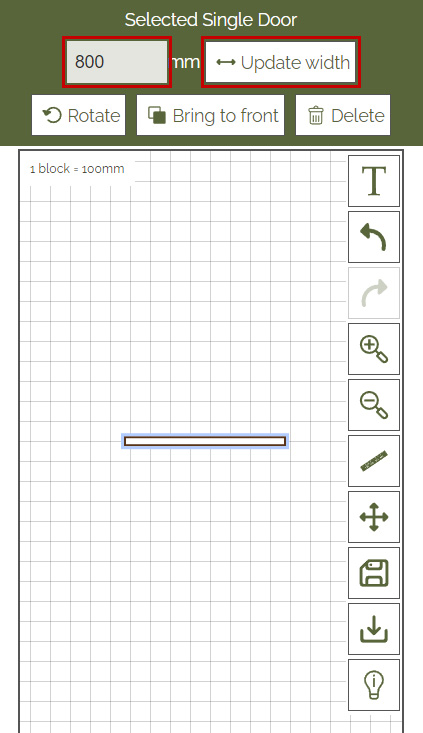
Change Custom Door and Sliding Door Dimensions
- To add windows, click on “Add Window”, enter the width of the window in the green bar and then click on “Update Width”. Position the window on the canvas on top of the walls.
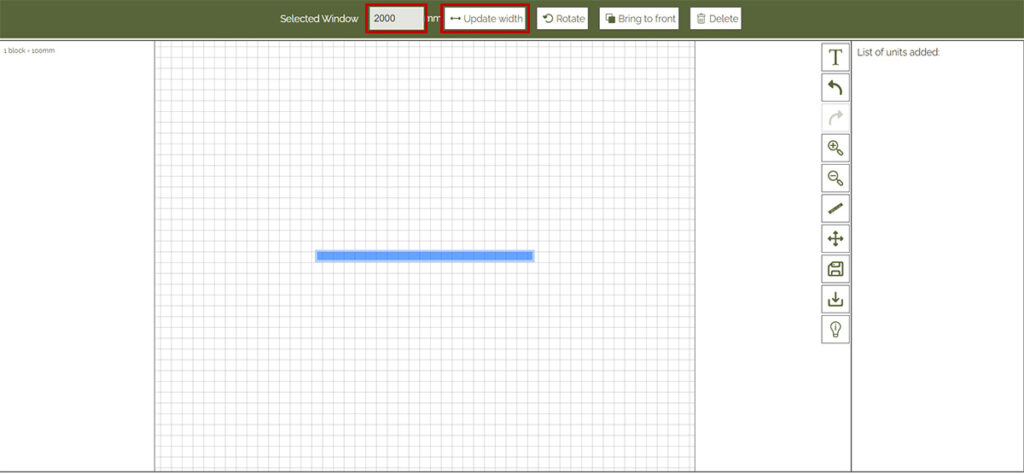

Update Window Dimension
Quick Links