


Help Center
-
Free-standing Kitchens
-
Design Your Kitchen
-
Online Kitchen Planner
-
- What is the Canvas?
- What do each of the buttons do?
- What can you use custom units for?
- Can I see diagrams of the units?
- When do you use extras on your plan?
- How do you start a new plan?
- How do you continue with an existing plan?
- What do you use the ruler for?
- Can I move multiple units at once on the canvas?
- How do I download the layout so that I can print it?
- How to I submit my layout to get a quote?
-
Construction
-
Costs
-
Ordering
-
Delivery
-
Kitchen Installation & Maintenance
-
Environment & Community Impact
Tutorial Step 5
Step 1
Measure your kitchen using our guidelines.
Step 2
Answer some basic design questions.
Step 3
Draw your floor plan using our online planner.
Step 4
Design your kitchen using MK units.
Step 5
Submit your design to us for a quotation.
Go to the Kitchen Planner
Start using the kitchen planner to design your kitchen
Submit your design to us for a quotation.
Once you complete your plan, click on “Get a Quote” which is seen below the list of units you added. When you click on this button your plan will be sent directly to us, from which we will send you a quotation within 24 hours or request further information if needed.
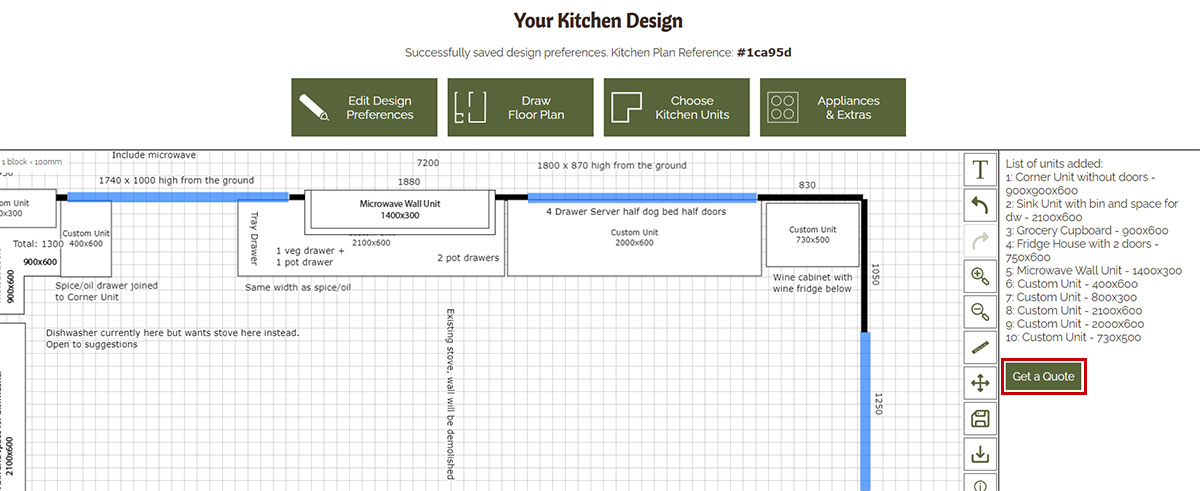
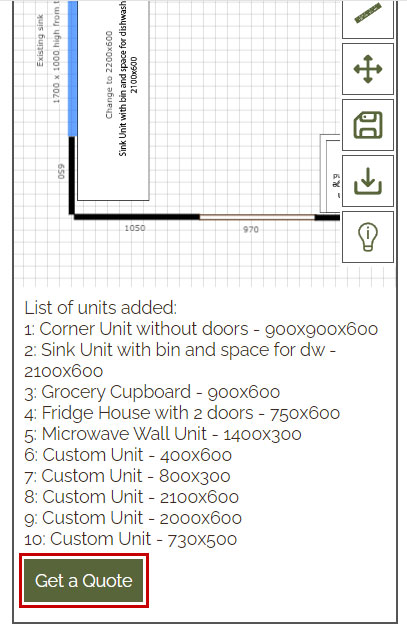
Click on Get a Quote
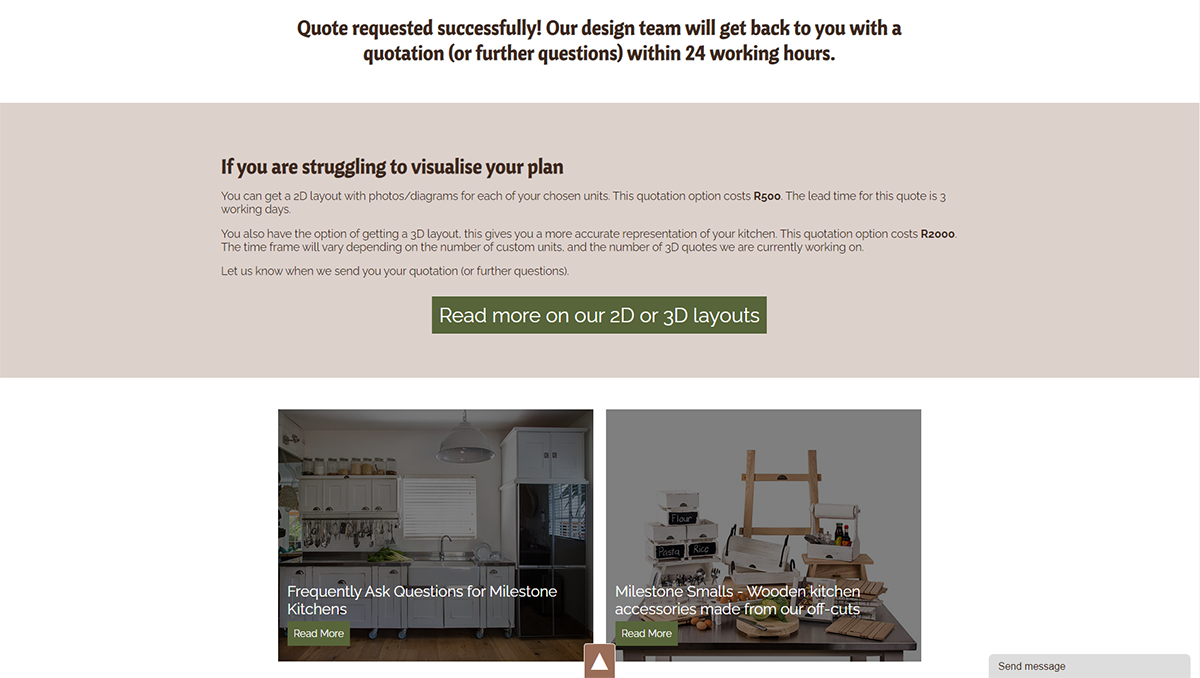
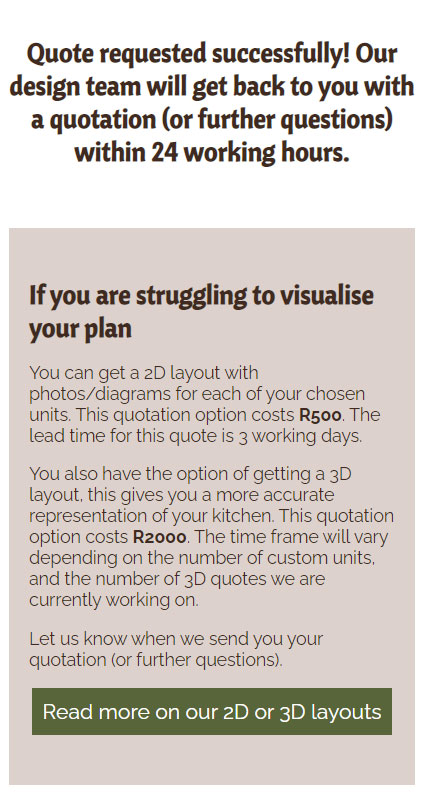
Your layout has been sent to us
Quick Links