


-
Free-standing Kitchens
-
Design Your Kitchen
-
Online Kitchen Planner
-
- What is the Canvas?
- What do each of the buttons do?
- What can you use custom units for?
- Can I see diagrams of the units?
- When do you use extras on your plan?
- How do you start a new plan?
- How do you continue with an existing plan?
- What do you use the ruler for?
- Can I move multiple units at once on the canvas?
- How do I download the layout so that I can print it?
- How to I submit my layout to get a quote?
-
Construction
-
Costs
-
Ordering
-
Delivery
-
Kitchen Installation & Maintenance
-
Environment & Community Impact
Tutorial Step 4
Before, placing units and appliances into your design, have a look at our tips for designing your kitchen layout.
Optional: First download our price list for a full overview of all the units we have available.
When adding wall units and tall units to your floor plan, keep in mind we measure these units excluding the cornice. The cornice is different for each range. Be sure to read article on how to measure your units correctly.
- To choose your units, simply click on “Choose Units” and browse the wide range of options available. Once you select a unit, it will appear in top view on the canvas. You can then move, rotate, delete, or put the unit on top of other units. For units with reversible features, such as sinks, doors, or drawers, you can also use the flip button.


Choose Kitchen Units


Select a unit for example a Baby Island


Unit gets added onto the canvas
If you would like to see diagrams of the available units before making your selection, click on “View Unit Diagrams”, found on the right-hand side of the main title for each section (e.g. Sink Unit). This will download a PDF document containing all the diagrams for that section.
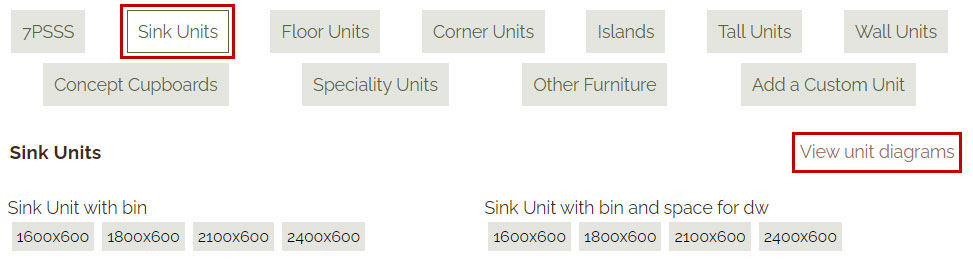

View Unit Diagrams
You can also add a custom unit to your plan by selecting “Add a Custom Unit” and input the desired width and depth. Be sure to click “Update Width” after entering the width, and “Update Depth” after entering the depth. Learn more about Custom Units here.


Add Custom Unit
- To add appliances and extras, click on “Appliances & Extras”. Here, you’ll find a range of stove and fridge sizes to choose from, as well as the option to add sinks, washers, and dryers if they are not already included in your selected units. The “Extras” button allows you to add additional drawers and tray spaces, represented by an arrow with a title that can be positioned in front the unit you would like to include the “extra”.


Appliances and Extras
You do not need to complete your design in one sitting, you can save your design and come back to it later. Click on the “save” button before closing your design. When you want to continue, click on “Continue Plan”, input your reference number the click on “Load Plan & Continue”.


Continue Your Plan